Getting Started with PlanningPoker.live
Welcome to PlanningPoker.live! This comprehensive guide will walk you through everything you need to know to run your first planning poker session. Whether you're a Scrum Master, Product Owner, or team member, you'll be up and running in minutes.
Quick Start
- Create a room: Click "Start Planning Poker Session" above or visit /create
- Invite your team: Share the room link with your team members
- Add topics: Create rounds for the user stories you want to estimate
- Vote and discuss: Team members vote simultaneously, then discuss differences
- Export results: Download results or sync to JIRA/Linear automatically
💡 Pro Tip: PlanningPoker.live works great for both remote and in-person teams. For remote teams, use our video conferencing integrations to run sessions directly in Zoom, Teams, or Google Meet.
📺 Video Tutorial: How to Run a Planning Poker Session
New to PlanningPoker.live? Watch this comprehensive tutorial that walks you through creating a room, inviting your team, and running your first estimation session from start to finish:
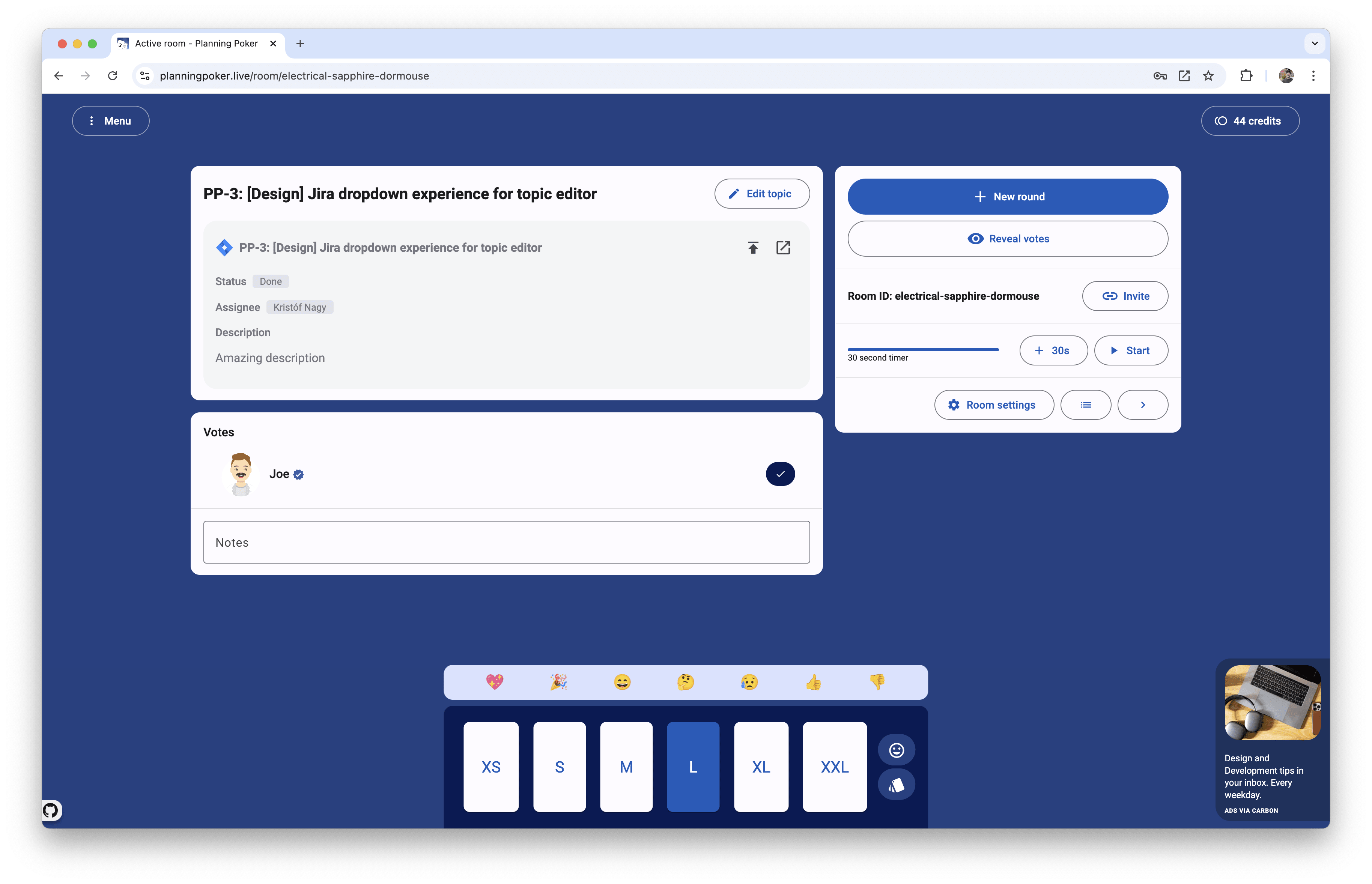
Step 1: Create a Planning Poker Room
Getting started with PlanningPoker.live is incredibly simple. You don't need to create an account or install any software - just click the "Start Planning Poker Session" button above or visit our room creation page.
What happens when you create a room:
- A unique room URL is generated (e.g., planningpoker.live/abc123)
- You become the room moderator with full control over the session
- The room is ready for team members to join immediately
- You can customize settings like card sets and room security
🔒 Room Security
By default, rooms are protected by obfuscation (hard-to-guess URLs). For additional security, you can:
- Enable password protection
- Restrict access to organization members only
- Set up recurring meetings with secure links
Learn more about room security best practices.
Step 2: Invite Your Team
Once your room is created, it's time to invite your team members. PlanningPoker.live makes this process seamless with multiple invitation options.
Invitation methods:
- Copy the room URL: Simply share the room link from your browser's address bar
- Use the "Invite others" button: Click this button in your room to copy the invitation link
- Email integration: Send invitations directly from the room interface
- Video conferencing integrations: Use our integrations to run sessions directly in Zoom, Teams, or Google Meet
👥 Team Size
There's no limit to the number of participants who can join a PlanningPoker.live session. Whether you have 3 team members or 30, everyone can participate in the estimation process.
🌐 Remote Team Support
PlanningPoker.live is designed for remote and distributed teams. Team members can join from anywhere in the world using any device with a web browser. No downloads or installations required!
Step 3: Set Up Your Session
Before starting your estimation session, take a few minutes to configure your room settings for the best experience.
Essential setup steps:
- Choose your card set: Select from Fibonacci, T-shirt sizes, or create custom cards
- Add your topics: Create rounds for the user stories you want to estimate
- Configure integrations: Connect with JIRA or Linear to import issues
- Set room permissions: Decide who can start rounds and reveal votes
🎴 Card Sets
PlanningPoker.live offers several default card sets:
- Fibonacci: 0, 1, 2, 3, 5, 8, 13, 20, 40, 100 (most popular)
- T-shirt sizes: XS, S, M, L, XL, XXL
- Custom: Create your own estimation scale
Learn more about choosing the right card set for your team.
📺 Video Tutorial: Using Different Card Sets
Watch this quick tutorial to learn how to choose and customize card sets for your team:
🔗 JIRA & Linear Integration
Connect your project management tools to streamline your workflow:
- Import user stories directly from JIRA or Linear
- Automatically sync story points back to your project
- Batch import multiple issues at once
- Maintain context with issue descriptions and links
Set up JIRA integration or Linear integration in just a few clicks.
📺 Video Tutorial: Estimating JIRA Issues with Planning Poker
Learn how to connect your JIRA account and seamlessly import and estimate issues:
📺 Video Tutorial: Estimating Linear Issues with Planning Poker
Watch how to integrate Linear with PlanningPoker.live for effortless agile estimation:
Step 4: Run Your Planning Poker Session
Now it's time to run your planning poker session! This is where the magic happens as your team collaborates to estimate user stories.
Session workflow:
- Present the user story: Read the story and discuss acceptance criteria
- Team members vote: Everyone selects their estimate simultaneously
- Reveal votes: Show all estimates at once to avoid anchoring bias
- Discuss differences: Talk about why estimates vary and share knowledge
- Reach consensus: Either agree on an estimate or revote after discussion
- Move to next story: Repeat the process for remaining user stories
⏱️ Timer Feature
Use the built-in countdown timer to keep your session on track. The timer helps ensure discussions stay focused and prevents sessions from running too long. You can set custom durations or use the default 30-second timer.
📝 Notes & Collaboration
Take notes during your session to capture important discussions, risks, or clarifications. Notes are shared with all participants and can be exported with your results.
🎭 Anonymous Voting
PlanningPoker.live supports anonymous voting to reduce bias and encourage honest estimates. Team members can vote anonymously while still participating in discussions.
Step 5: Review Results and Export
After completing your estimation session, review the results and export them to your project management tools or save them for future reference.
Export options:
- CSV download: Export results as a spreadsheet for analysis
- JIRA/Linear sync: Automatically update story points in your project
- Session history: Access past sessions and results anytime
- Velocity tracking: Monitor your team's estimation patterns over time
📊 Velocity & Analytics
PlanningPoker.live automatically calculates your team's velocity based on completed stories. This helps you make more accurate sprint commitments and identify estimation patterns.
Tips for a Successful Session
Follow these best practices to ensure your planning poker sessions are productive and engaging.
🎯 Prepare Your Stories
Ensure user stories are well-defined with clear acceptance criteria before the session. This reduces confusion and leads to more accurate estimates.
⏰ Time Management
Keep sessions to 30-45 minutes to maintain team engagement. Use the timer feature to stay on track and avoid decision fatigue.
🗣️ Encourage Discussion
When estimates differ significantly, encourage team members to explain their reasoning. This knowledge sharing improves future estimates.
📱 Use Integrations
Leverage our video conferencing integrations for seamless remote sessions. This keeps everyone engaged and maintains face-to-face communication.
🔄 Regular Practice
Run planning poker sessions regularly to improve team estimation skills. Consistent practice leads to more accurate estimates over time.
📈 Review & Improve
After each sprint, review actual vs. estimated effort to calibrate your team's estimation accuracy.
🎓 Learning Resources
Want to dive deeper into planning poker techniques? Check out our comprehensive guides:
- What is Planning Poker? - Complete overview of the technique
- How to Run a Planning Poker Session - Step-by-step setup walkthrough
- Improve Your Sprint Planning - Applying Planning Poker to sprint planning meetings
- FAQ - Answers to common questions
Next Steps
Congratulations! You're now ready to run your first planning poker session. Here are some next steps to enhance your experience:
💡 Did you know? PlanningPoker.live is used by teams at companies like Google, Netflix, Amazon, and thousands of other organizations worldwide. Join them in improving your agile estimation process!

Try Planning Poker today!
Better sprint planning and estimation for the whole team. Ready to estimate stories in your remote team? Start a free planning poker session now!